How to Identify AI-Generated Images Manually
AI-generated images can look very realistic, but there are still signs that may help you inspect them more carefully. These tips are not 100% accurate, but they can help you make a better judgment.
1. Look for Abnormal Details
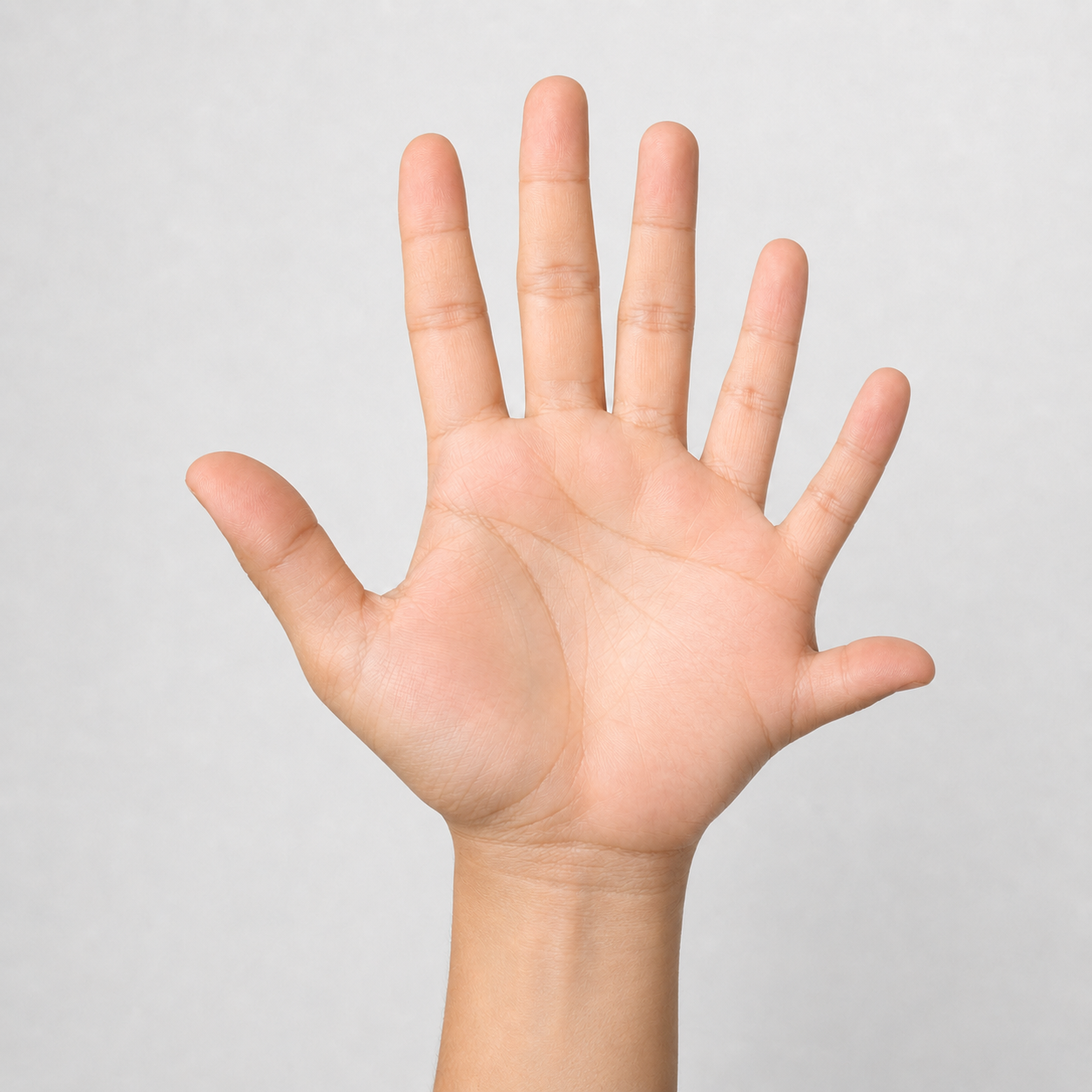
Check for strange or unrealistic parts of the image. AI-generated images may contain small mistakes, especially in complex areas such as hands, faces, accessories, shadows, or object shapes.
- Extra or missing fingers
- Unnatural hands or body parts
- Distorted ears, teeth, eyes, or accessories
- Objects that do not connect properly
- Strange shadows or reflections
Sample to Check
Example: zoom in on the hand area and check whether the fingers look natural.
2. Check Text, Words, or Letters
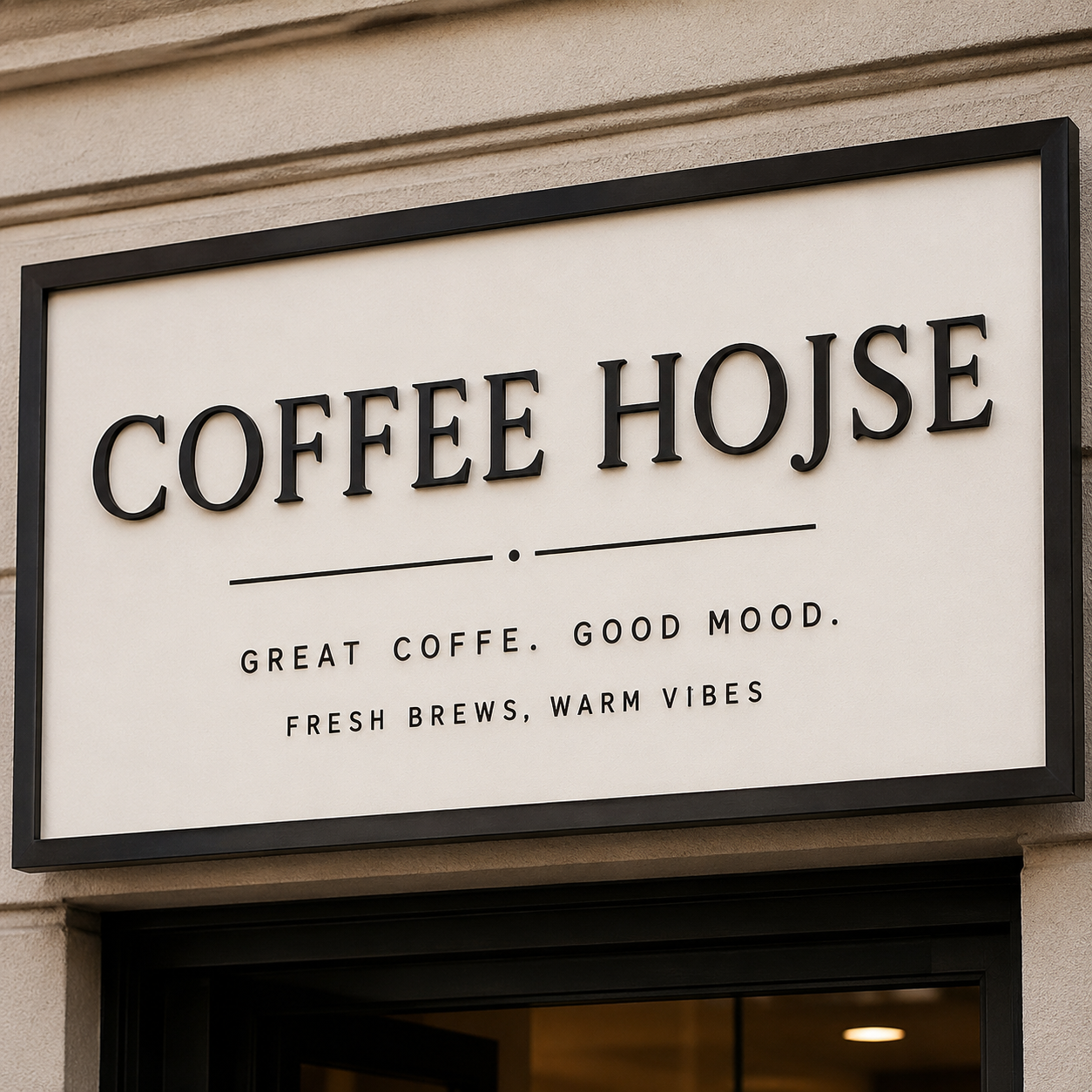
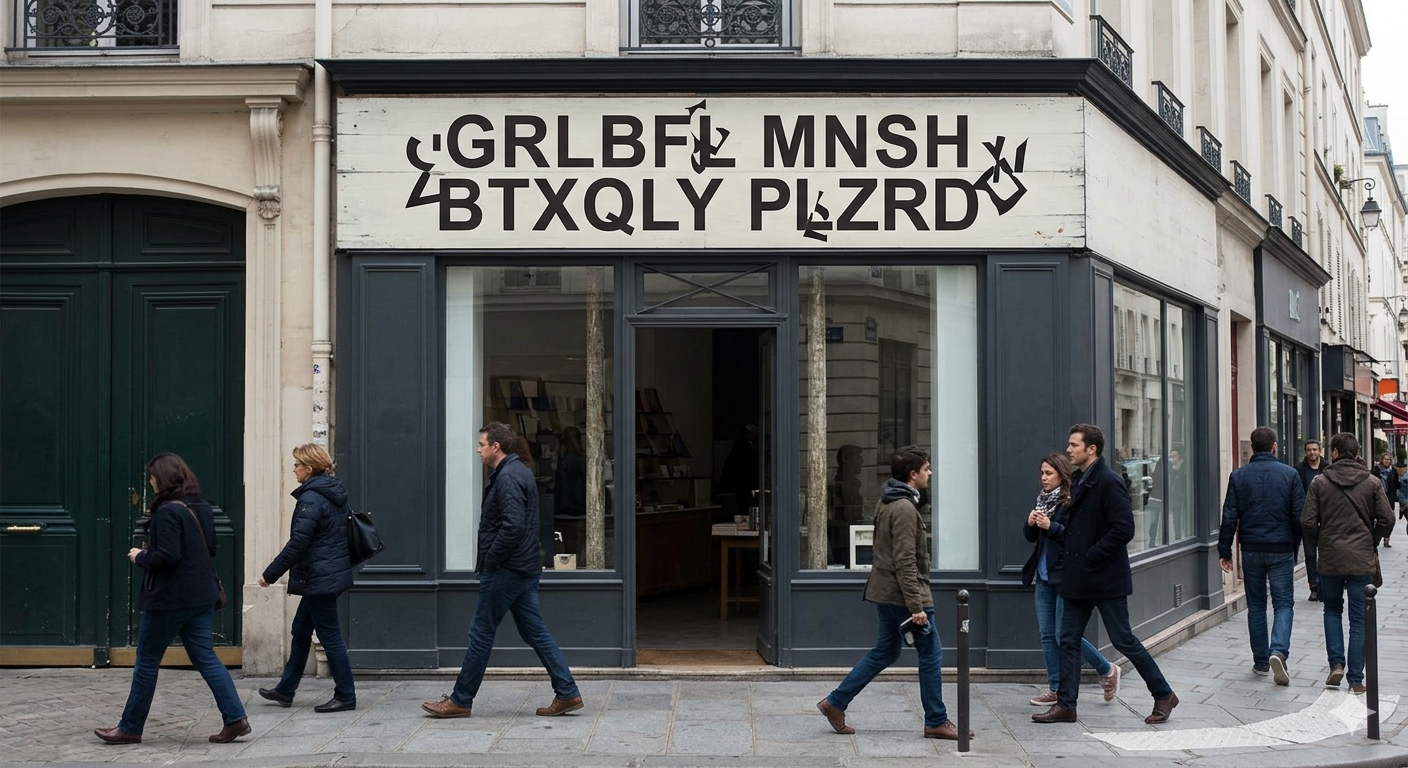
If the image contains signs, labels, posters, logos, or printed words, zoom in and inspect the text. AI models are improving, but they may still create broken or strange-looking letters.
- Broken letters
- Random-looking words
- Misspelled text
- Text that looks correct from far away but strange when zoomed in
Sample to Check
Example: inspect text on signs, posters, product labels, or clothing.
3. Inspect Texture and Background
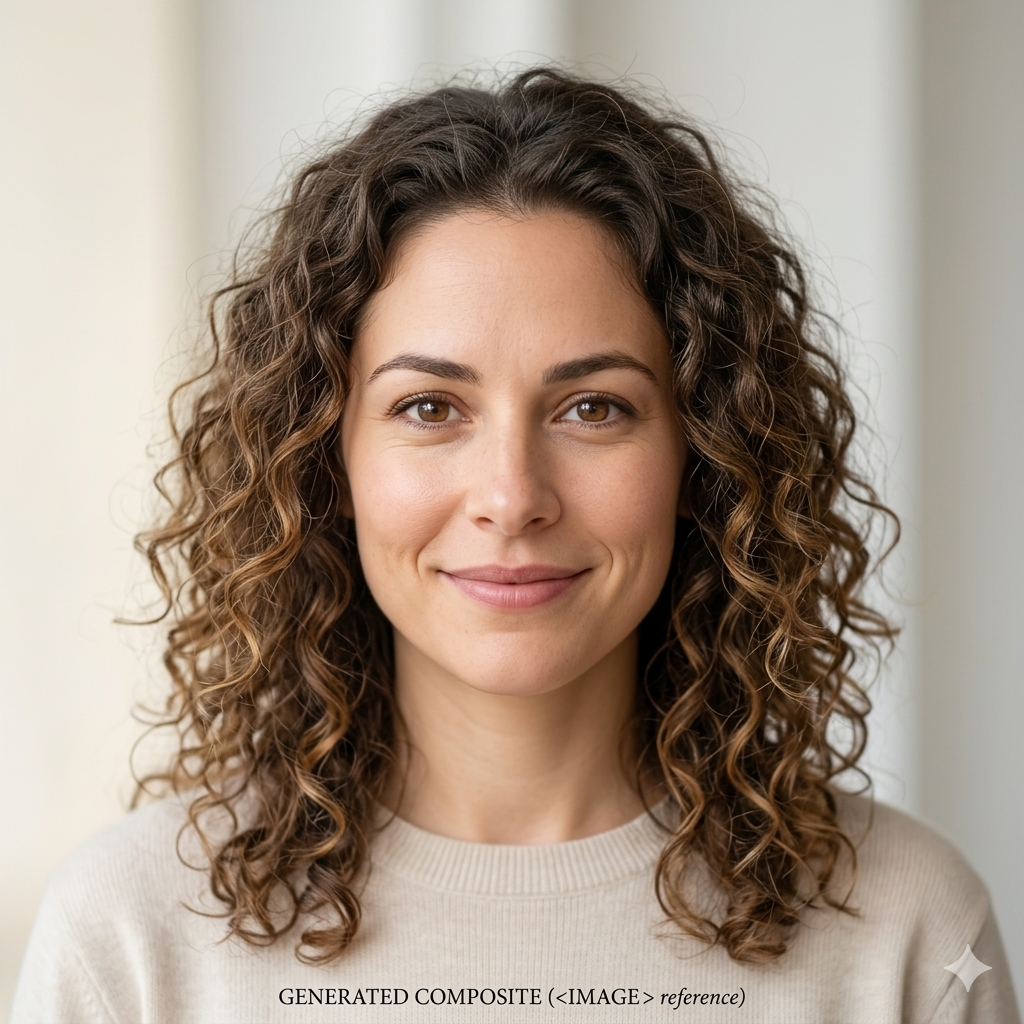
Some AI-generated images may have overly smooth skin, plastic-like textures, blurry objects, or backgrounds that do not make sense when viewed closely.
- Skin that looks too smooth or artificial
- Background objects blending together
- Repeated or unnatural patterns
- Hair, fabric, or surfaces that look unrealistic
Sample to Check
Example: compare the face, hair, clothes, and background texture for unnatural smoothness.
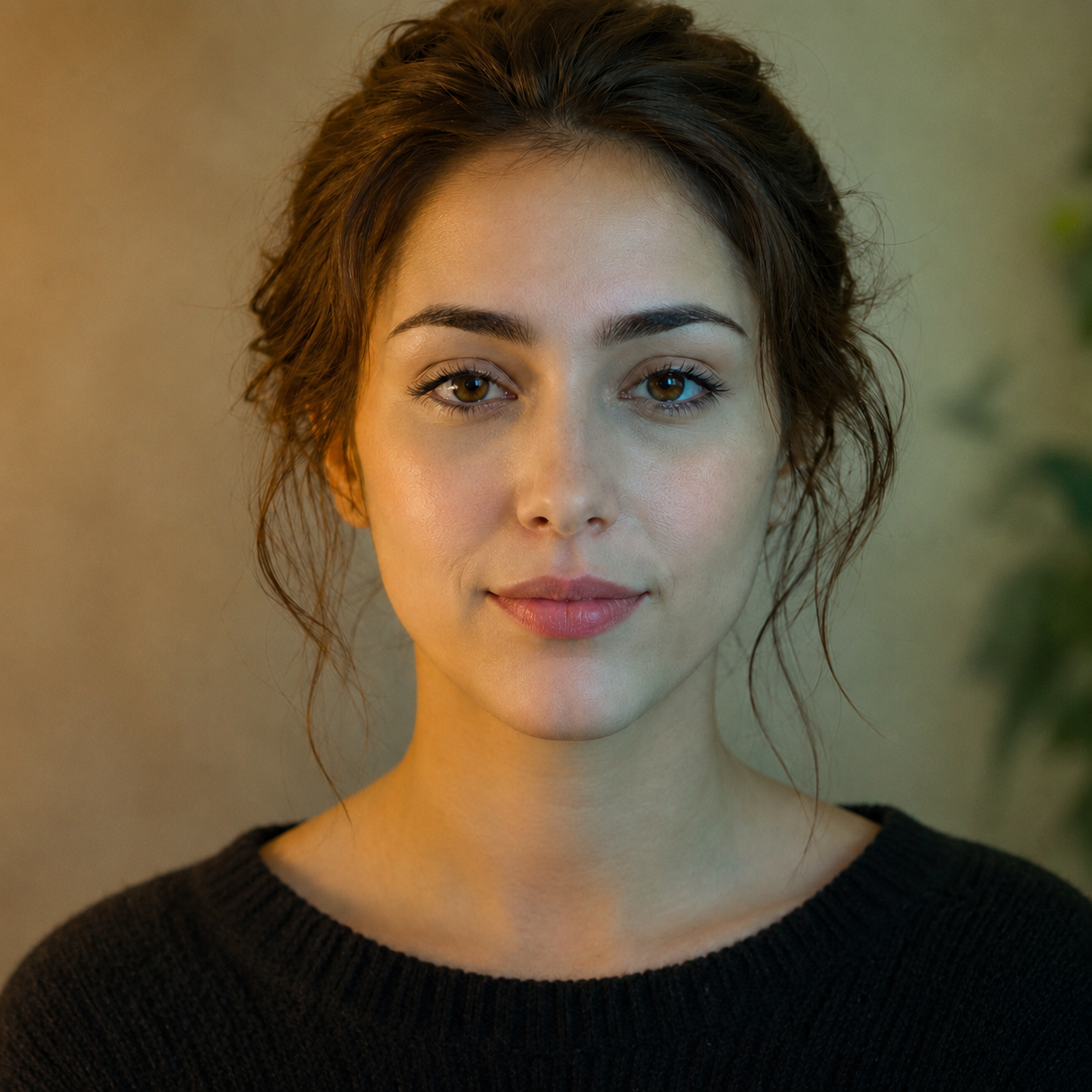
4. Look for Color or Lighting Inconsistencies
Check whether the lighting, shadows, and colors make sense across the whole image. AI-generated images may sometimes have inconsistent lighting or unusual color shifts.
- Background hue shifts
- Objects with mismatched lighting
- Shadows pointing in different directions
- Colors that look unnatural across different parts of the image
Sample to Check
Example: check whether the light source and shadows are consistent.
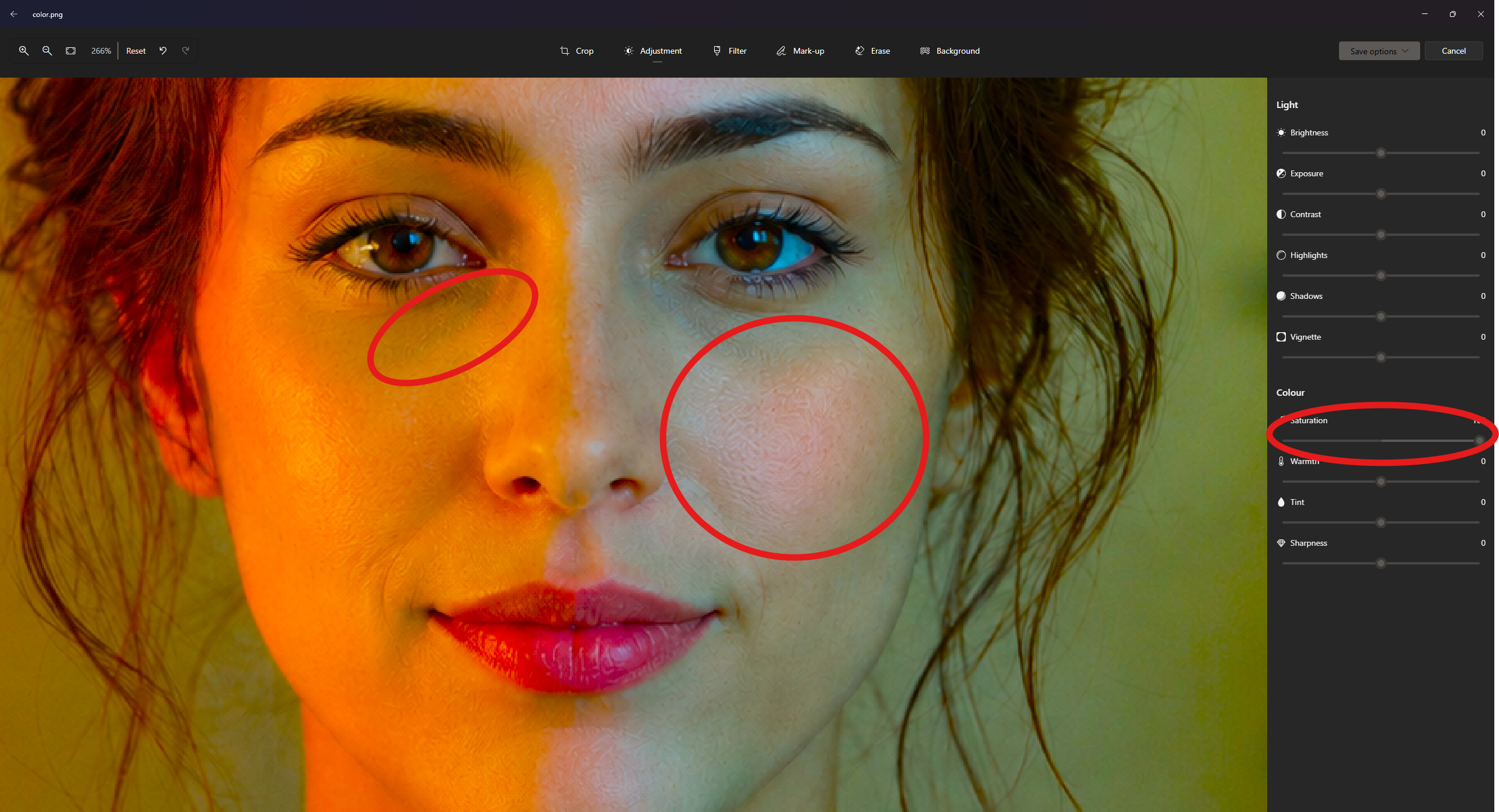
5. Use an Image Editor for Closer Inspection
You can use tools such as Photoshop, GIMP, or Clip Studio Paint to inspect the image more closely. Try increasing saturation, contrast, or sharpness to make hidden artifacts easier to see. However, this method does not always reveal clear signs, especially on newer AI-generated images.
- Look for strange color noise around edges
- Check for unnatural texture patterns
- Look for checkerboard-like artifacts
- Inspect blurry or overly flat areas
- Remember that some AI images may still look clean after adjustment
Sample to Check
Example: increase saturation or contrast and look for strange noise patterns.
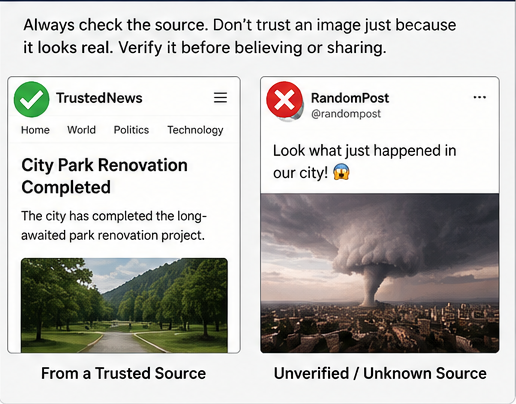
6. Verify the Source
This is the most important step. Do not trust an image only because it looks real. Always check where the image came from and whether the source is reliable.
- Check who posted the image
- Look for the original source
- Use reverse image search
- Compare with trusted news or official sources
- Check whether the context matches the image
Sample to Check
Example: search the image online and compare it with reliable sources before trusting it.
Important Reminder
Manual checking can help, but it is not always accurate. Some real images may look strange, and some AI-generated images may look very realistic. For better results, combine manual inspection with AI detection tools, source verification, and critical thinking.